Ensure your camera, microphone and headphones/earbuds are properly installed and working on your computer.
Save any unsaved documents, restart your computer, and close all programs.
NOTE: You may wish to display these instructions on a cell phone, tablet or other second device (or else print this page), as you will not be able to use your computer to read them during certain parts of this check-in.
1.2 – SETTING UP THE EVALUATION ENVIRONMENT
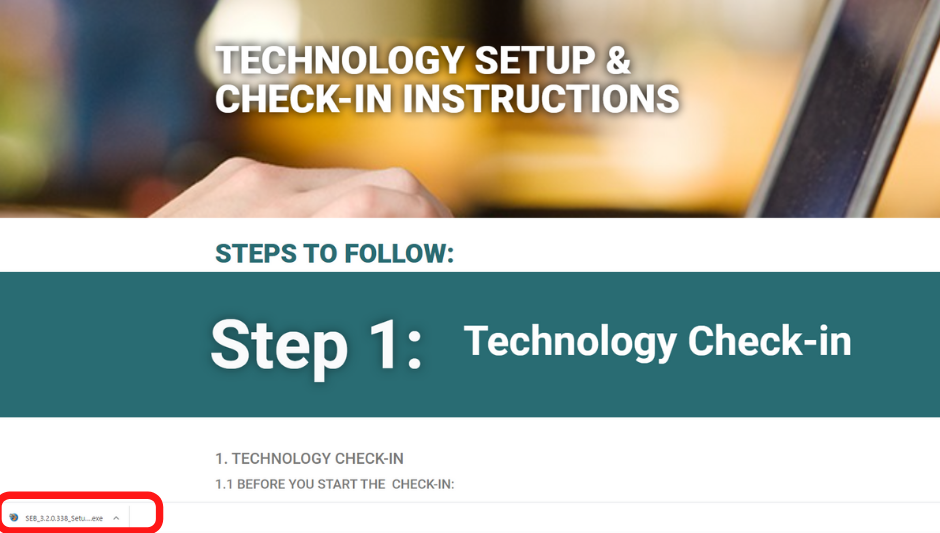
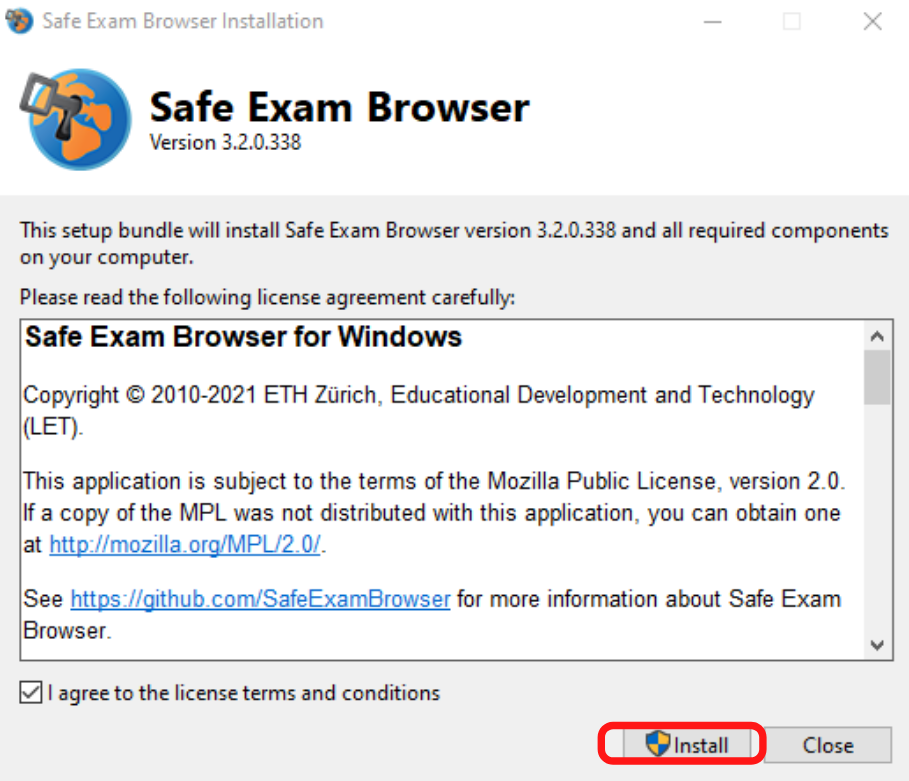
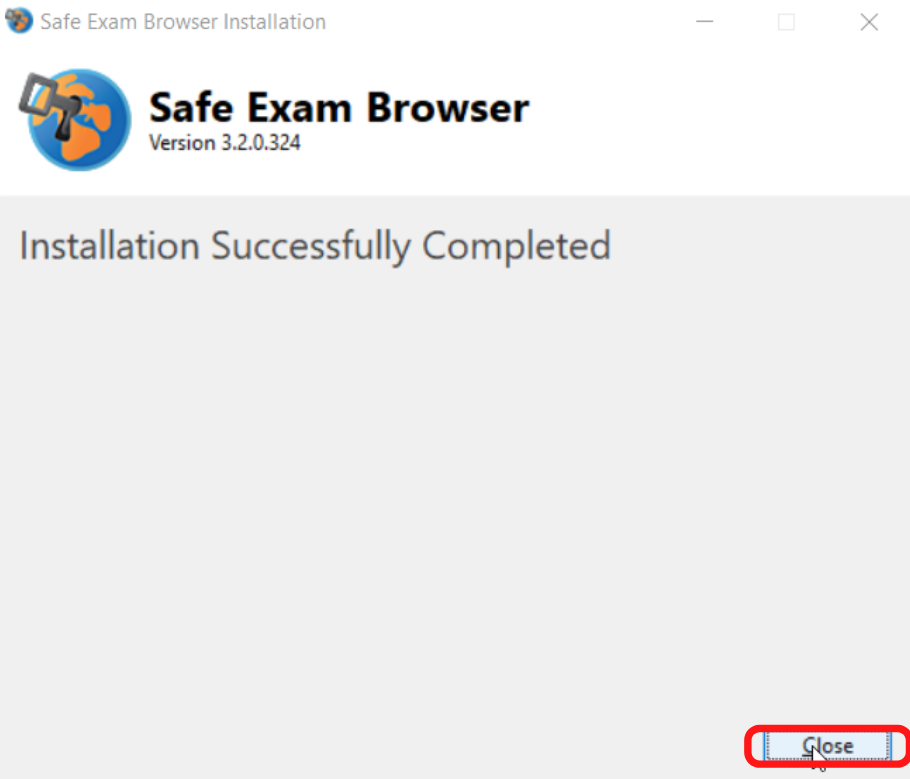
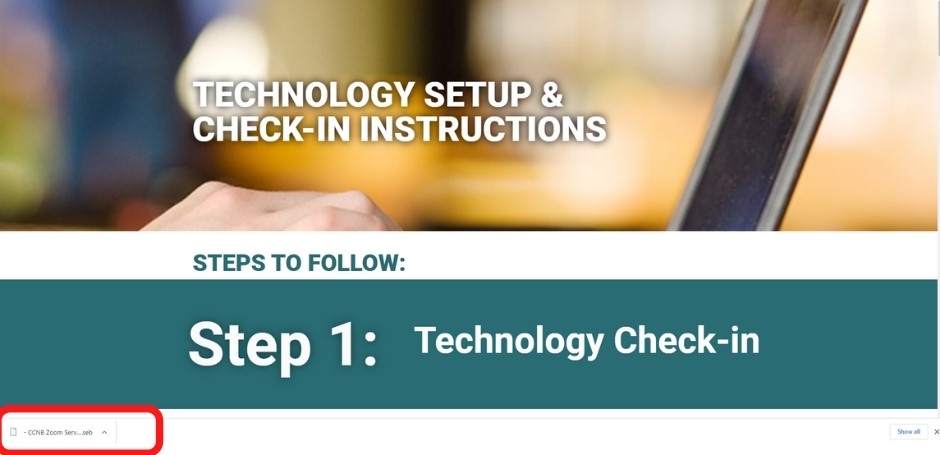
Click here to download and then open to install the Safe Exam Browser Proctoring Software.
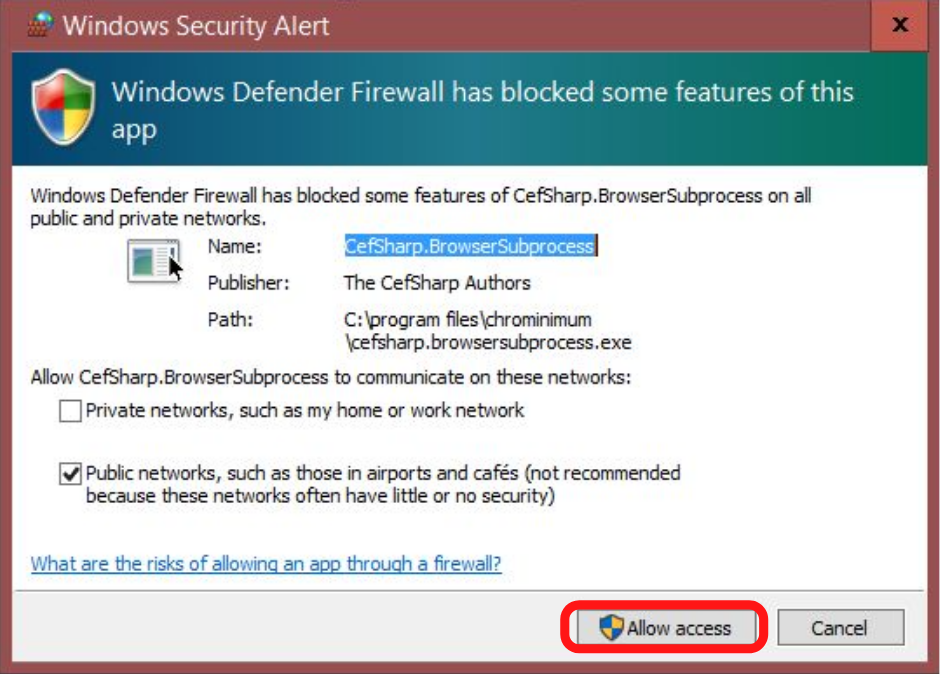
Possible Windows defender messsage – Click “Allow access”
NOTE: If you have already installed this software before, please uninstall and reinstall it before each new evaluation to ensure you have the latest updates.
NOTE: Please display these instructions on a cell phone or second device (or print this page), as you will not be able to access these instructions on your computer after the next step and for the remainder of the Setup.
1.3 – TESTING YOUR CAMERA, MICROPHONE AND EARBUDS/HEADPHONES
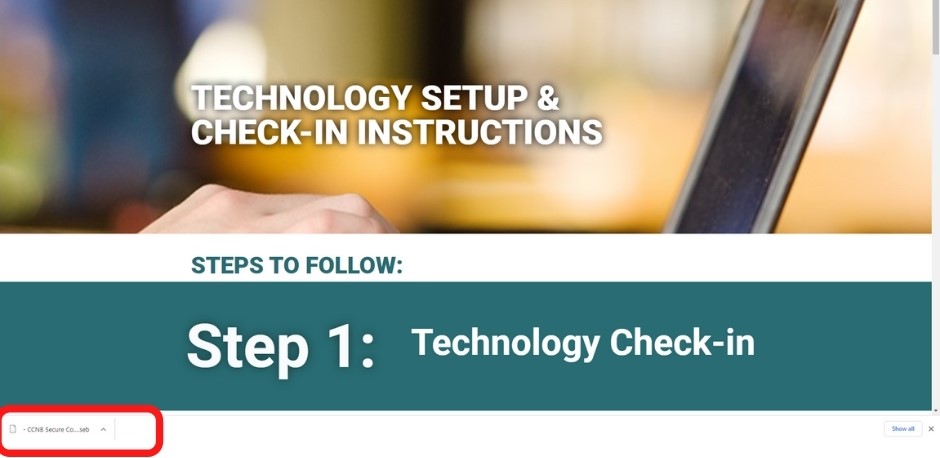
Clickhereto download and then click on the new file to run the CCNB Secure Connection Test Packet to begin the camera, microphone and headphone test.
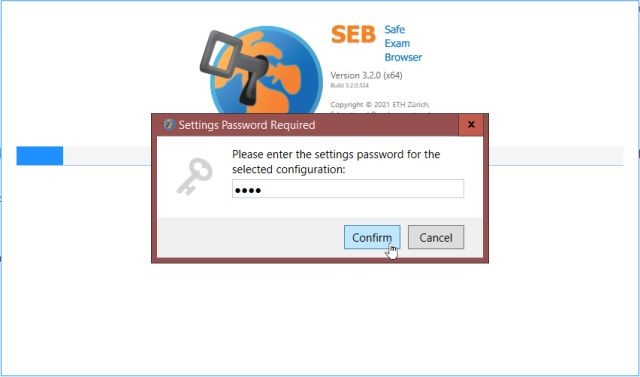
NOTE: The password for this test is “test” (all lowercase, no quotes).
Password prompt : test
Possible: Accept to deactivate these programes
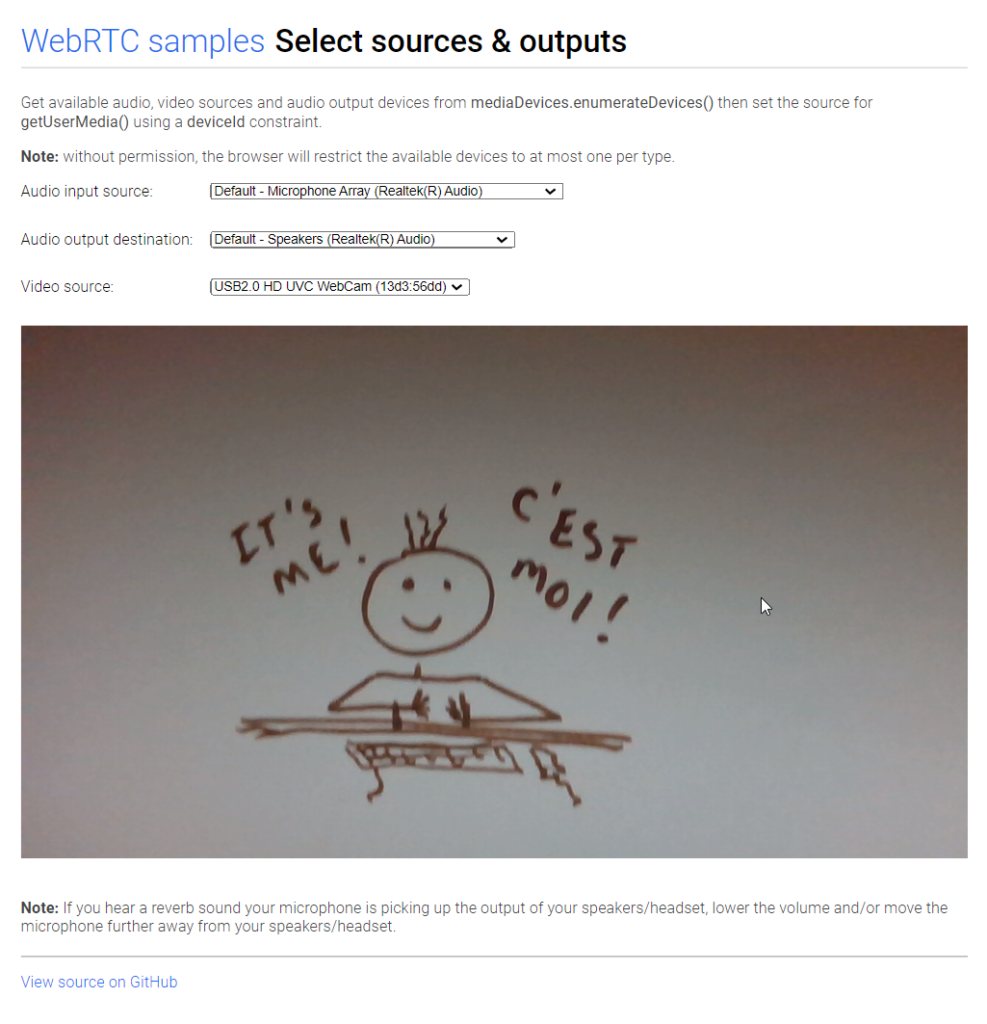
Test1 camera, microphone and earbuds/headphones
SUCCESS!
NOTE: The SSELP-Remote Secure Connection Test Package will launch Safe Exam Browser, and you will not be able to access any other features or programs on your computer until you exit Safe Exam Browser.
NOTE: If you are not able to get your camera, microphone, or headphones/earbuds to work properly, please follow the instructions above to contact SSELP-Remote Support Staff for technical assistance.
To exit the Secure Connection Test environment, click the power icon in the bottom right corner of the screen (or hit CTRL-Q) and answer “yes”.
1.4 – TESTING YOUR CONNECTION TO EVALUATION SERVERS
Click here to download and open the Secure CCNB Zoom Server Test Packet to begin the Secure CCNB Zoom Server Test.
NOTE: The password for this test is “test” (all lowercase, no quotes).
Password prompt : test
Possible : Accept to deactivate thse programs
Secure Server Test Zoom web interface – Sign in
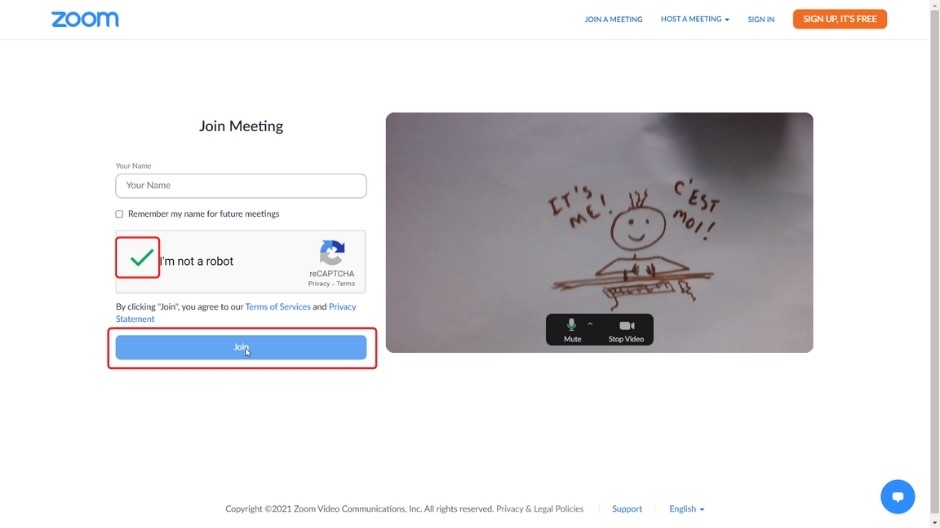
Captcha – Click “I’m not a robot”
Click Connect/Join
SUCCESS!
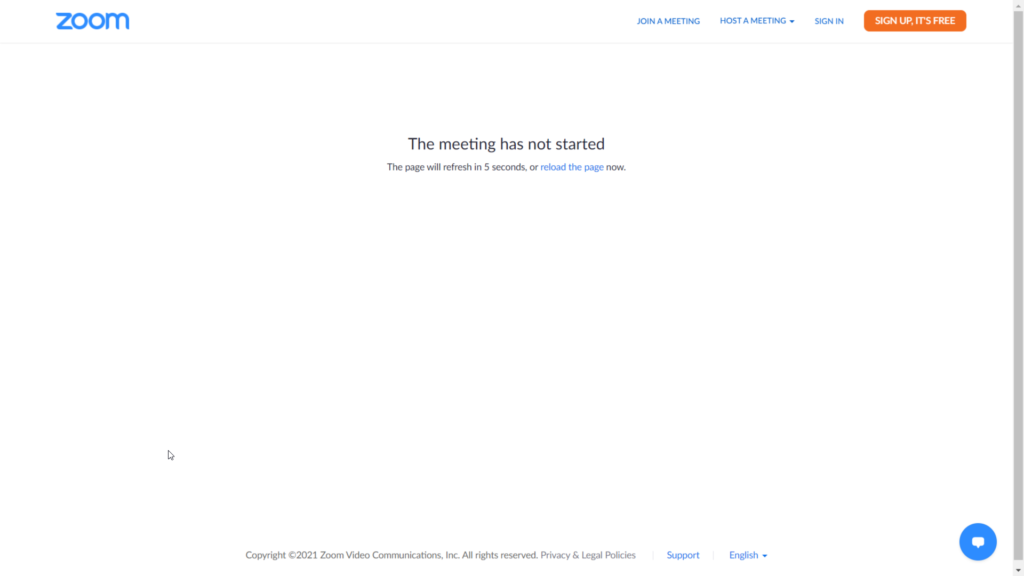
Zoom web interface – Waiting Room
NOTE: If you are not able to connect to the CCNB Zoom Server properly, please contact CCNB for technical assistance.
Click the power icon in the bottom right corner of the screen (or hit CTRL-Q) and answer “yes” to exit the Secure Connection Test environment.
1.5 – CONFIRM YOUR SUCCESSFUL TEST WITH US
You must complete every step of this setup and testing before the Booking Cancellation Deadline for your evaluation to receive technical assistance, or you may not be allowed to do your evaluation and no refund will be given.
If the test was successful, please confirm that you have completed this test by visiting this page and entering your Booking Number and email address (as found in the Booking Confirmation email you have already received).